Contributing
ACCESS-Hive Docs is a community resource for users of the Australian Community Climate and Earth System Simulator (ACCESS).
Have an idea for improvement? We'd love to have your contributions onboard! Whether you're correcting a typo, improving existing content, or adding something new, every contribution helps make the documentation more useful for the community.
Tip
Not comfortable editing documentation? Simply reporting a typo or suggesting an improvement by opening an issue is a valuable and appreciated contribution!
How you can contribute
There are three ways to contribute:
- Suggest a change or report a problem by opening a GitHub issue.
- Edit a page directly (via pencil icon) - quick fixes to a single page.
- Larger changes - new pages, restructuring, or multi-file edits.
All are equally welcome - feel free to choose whichever works best for you.
Info
All contribution paths require a GitHub account — sign up for free if you don't have one.
1. Open a GitHub Issue

The easiest way to contribute is to open a GitHub issue. This is a great option if you:
- Spot a typo, error, or broken link.
- Find something confusing or unclear.
- Have an idea for improvement.
- Don't want to edit the page yourself.
Once the issue has been submitted, you are welcome (and encouraged!) to make a suggested edit via a pull request to address your issue (see contributing options 2 or 3 below), otherwise the ACCESS-NRI team or other contributors will be happy to take it from there.
2. Edit a page directly
For quick updates to an existing page, you can edit it directly in your browser using the pencil icon in the top-right corner of the website.
- Click the edit (pencil) icon in the top-right corner of the page you want to edit.
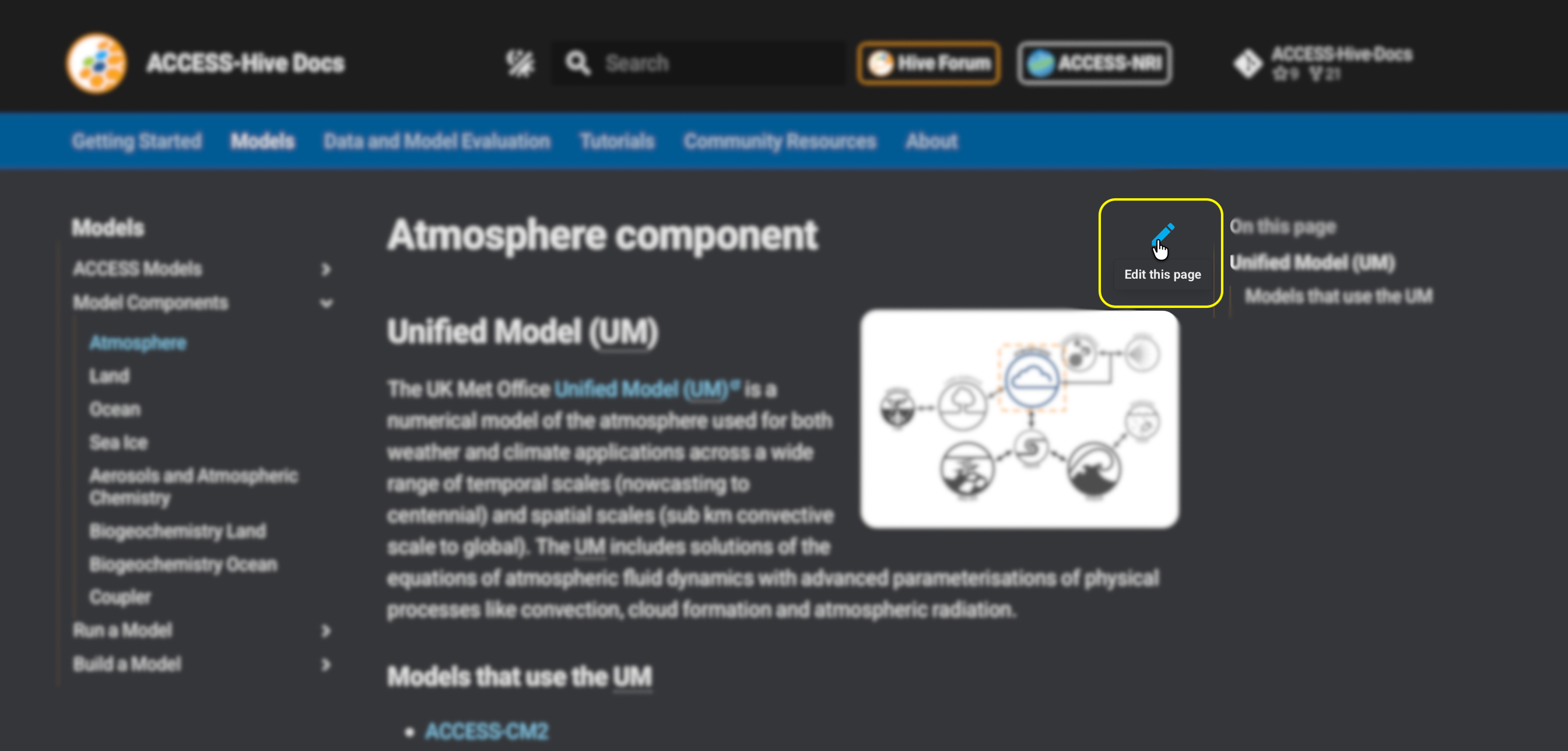
- If you are outside the ACCESS-NRI GitHub organisation, GitHub will ask you to fork the repository.
- Make your changes in the editor.
- Scroll down to the Commit changes, add a short commit message, and click Propose changes. If you are an ACCESS-NRI GitHub organisation member, GitHub will automatically create a new branch for you.
- Click Create pull request.
- Add details about the proposed changes and click Submit.
3. Make changes locally
For larger changes or updates across multiple pages, the easiest approach is to work on a local copy of the documentation and then push your changes to GitHub when ready. This documentation is written in Markdown format and is based on the Material for MkDocs theme, which is built on top of the MkDocs static site generator.
Tip
If you are not a member of the ACCESS-NRI GitHub organisation, you will need to fork the repository first. A fork is your own copy of the repository on GitHub where you can make changes before proposing them back to the main repository.
Step 1: Fork the repository
Info
ACCESS-NRI GitHub organisation members can skip this step and clone the original ACCESS-Hive Docs repository directly.
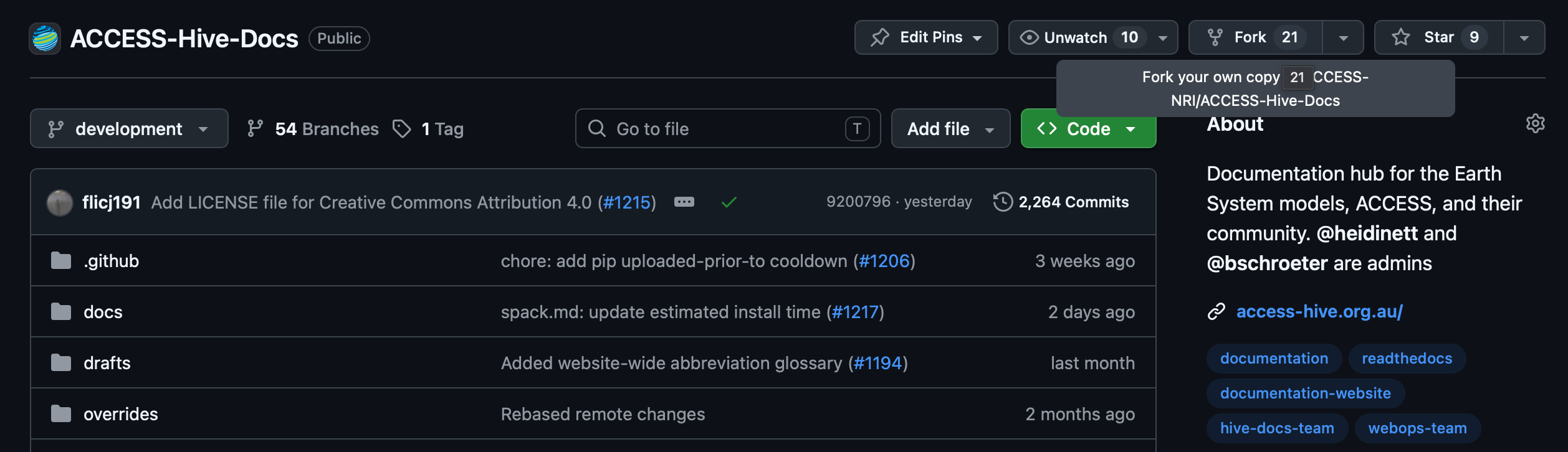
If you are outside the ACCESS-NRI GitHub organisation:
- Go to the ACCESS-Hive Docs repository on GitHub.
- Click Fork in the top-right corner.
- Choose your GitHub account as the destination.
- Click Create Fork.
This creates your own copy of the repository.
Step 2: Clone the repository
Cloning creates a local copy of the repository on your computer. Before cloning, open a terminal and navigate to the directory where you'd like the repository to be downloaded.
Then, if you have forked the repository, you can clone your fork by clicking the green Code button in the top-right corner of the repository page, copying the repository URL, and then running the following command:
git clone https://github.com/YOUR_USERNAME/ACCESS-Hive-Docs.git
If you are an ACCESS-NRI team member, you should clone the original ACCESS-Hive-Docs repository directly:
git clone https://github.com/ACCESS-NRI/ACCESS-Hive-Docs.git
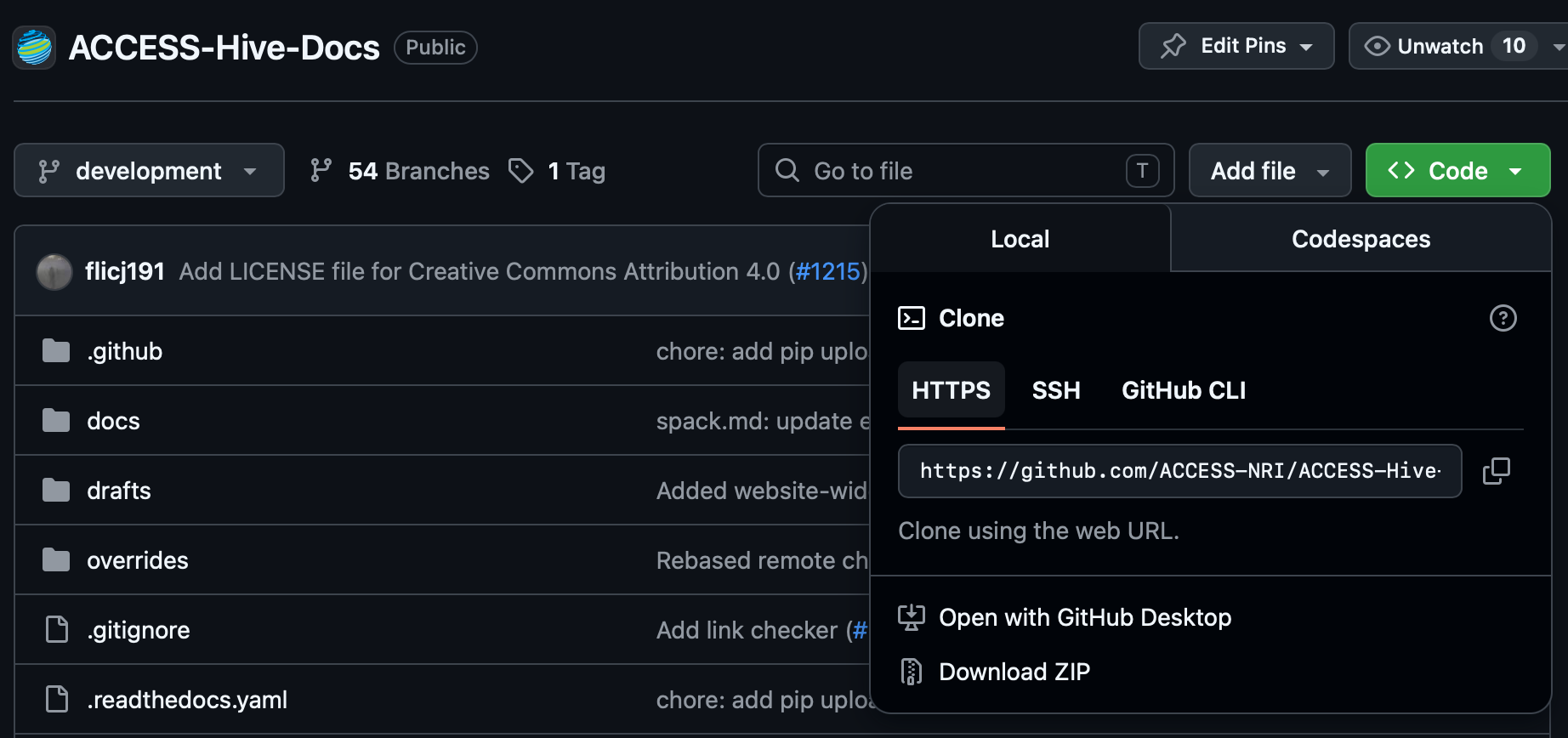
Cloning with SSH
If you have already configured SSH keys, click the green Code button, select SSH, and copy the SSH URL. You can then clone the repository using:
git clone git@github.com:ACCESS-NRI/ACCESS-Hive-Docs.git
Once the repository has been cloned, navigate into the repository directory.
Step 3: Create a new branch
After cloning the repository locally, create a new branch to make your local changes:
git checkout -b your-branch-name
Creating a branch keeps your work separate from the main version of the documentation.
Step 4: Make your changes
Open the directory in your editor (e.g. VS Code), ensure you are working on your new branch (VS Code lists your current branch in the bottom left of the window) and make your edits. You can check which files have been modified with:
git status
Step 5: [OPTIONAL] Preview your changes locally
Info
Local previews can be really handy to see your changes rendered how they would look on the website, but they require you do install software onto your computer. If you'd prefer to avoid software installation, you can skip this step and preview your branch after you push your changes to the Hive Docs repository via a pull request (by following the remaining steps).
Execute the following command to download and install Material MkDocs and all related plugins:
pip install -r requirements.txt
Before submitting your changes, you can preview them locally using the command:
mkdocs serve
This will start a local documentation server. Open the URL shown in your terminal, usually:
http://127.0.0.1:8000
Step 6: Review your changes
Review your changes before committing:
git diff
This helps confirm that only the intended changes will be included.
Step 7: Commit your changes
Stage the files you changed:
git add path/to/file.md
Or stage all modified files:
git add .
Commit your changes with a short description:
git commit -m "my commit description"
Step 8: Push your branch to GitHub
Once, you have committed your changes, push your branch to GitHub. The first time you push a new branch, run:
git push --set-upstream origin your-branch-name
The --set-upstream option links your local branch to the branch on GitHub. After this you can any future commits on the same branch with:
git push
Step 9: Open a pull request
After pushing your branch to remote, create a pull request using the following steps:
- Go to the repository on GitHub.
- GitHub will usually display a prompt to create a pull request from your branch.
- Click Compare & pull request.
- Add a title and detailed description explaining your changes.
- Click Create pull request.
Tip
Include a brief summary of what changed and why. If your changes relate to an existing issue, consider linking to it in the pull request description.
Step 10: Review the pull request preview
After you open a pull request, a preview version of the documentation is automatically generated. Once the preview has been deployed:
- Open the preview link from the pull request checks, comments, or status checks.
- Review your changes in the linked preview documentation site.
Note
The pull request preview shows how your changes will appear before they are added to the public website, making it a great way to catch formatting or rendering issues.
Best Practices
Creating issues
Creating clear and well-labelled issues helps contributors to quickly understand the type, purpose, and urgency of a task.
-
Use a clear and descriptive title that summarises the issue.
-
Include enough context for others to understand the problem.
-
Keep issues focused on a single topic where possible. Smaller, targeted issues are generally easier to discuss and resolve.
Branching Workflows
The Hive Docs repository currently uses two primary branches: main and development. main is the production-ready branch (what is visible on the public website), and development is the staging branch where latest changes are pushed and previewed.
Contributors should generally:
- Create a branch from
development. - Open pull requests with
developmentas the target.
The development branch is automatically merged into main daily. This reduces the risk of having breaking changes affect the live website.
Branch Naming
Using descriptive branch name makes it easier to understand what the branch is for. We recommended using the following branch name structure:
- name/issue-number/short-description
Example: - john/24/add-cosima-tutorial
Pull Requests
Well-documented pull requests help reviewers understand the intent of changes and reduces the turnaround time of the review.
When opening a PR: - Provide a clear summary of the changes. - Explain why the changes were made, not just what changed. - Link related issues or discussions where relevant. - Include screenshots or previews if applicable.
Smaller and focused PRs are generally preferred over very large changes, as they are easier to review, test and merge.
Before submitting a PR, contributors are encouraged to: - Check formatting and links. - Preview documentation changes on the PR previews generated just after creating a PR. - Check GitHub CI is passing all checks.
Need help?
- For any questions, create a help request on the ACCESS-Hive Forum.
Further Reading
- For official GitHub documentation, see GitHub Docs.
- For a more detailed, beginner-friendly introduction to Git and GitHub, see Project Pythia - Getting Started with GitHub tutorial.