 Release notes
Run ACCESS-ESM1.5
About
ACCESS-ESM1.5 is a fully-coupled global climate model, combining atmosphere, land, ocean, sea ice, ocean biogeochemistry and land biogeochemistry components. A description of the model and its components is available in the ACCESS-ESM1.5 overview.
The instructions below outline how to run ACCESS-ESM1.5 using ACCESS-NRI's software deployment pipeline, specifically designed to run on NCI's supercomputer Gadi.
If you are unsure whether ACCESS-ESM1.5 is the right choice for your experiment, take a look at the overview of ACCESS Models.
All ACCESS-ESM1.5 configurations are open source, licensed under CC BY 4.0
 and available on ACCESS-NRI GitHub.
ACCESS-ESM1.5 release notes are available on the ACCESS-Hive Forum and are updated when new releases are made available.
Prerequisites
-
NCI Account
Before running ACCESS-ESM1.5, you need to Set Up your NCI Account. -
MOSRS account
MOSRS is a server run by the UKMO to support collaborative development with other partners organisations. MOSRS contains the source code and configurations for some model components in ACCESS-ESM1.5 (e.g., the UM).
To apply for a MOSRS account, please contact your local institutional sponsor. -
Join NCI projects
Join the following projects by requesting membership on their respective NCI project pages:Tip
To request membership for the ki32_mosrs subproject, you need to:
- already be member of the ki32 project
- have a MOSRS account
For more information on joining specific NCI projects, refer to How to connect to a project.
Terminology
Configuration and experiment definitions
Configuration and experiment definitions
The terms configuration and experiment are not interchangeable although they are closely related.
-
A configuration defines a specific way to run the model it relates to.
A configuration is defined by:- model version and build (model executable(s))
- set of input files (ancillaries, forcings, restarts)
- set of physical and modelling options for each model component, such as namelists, configuration files and MPI layout
Changing any one of these elements creates a new configuration
-
An experiment is a realisation of a configuration: a series of sequential runs that generate model data over a span of model time.
Workflow manager, payu
Info
payu is a workflow manager tool for running numerical models in supercomputing environments. It is an open-source software, distributed under an Apache 2.0 Licence.
For in-depth information about payu, check its technical documentation.
Data organisation and payu's directories designation
Tip
payu creates all the directories it needs. Therefore, they do not need to be created beforehand.
The data organisation for payu was chosen to separate the smaller text files that define a configuration and the larger binary input and output files needed for an experiment.
This means the configuration definition can be tracked with git, and so is easy to back up and share. It also optimises the use of different filesystems on high-performance computers. Finally, this layout ensures several experiments that share common executables and input data can be run simultaneously.
A representation of the data organisation for payu is given in the following diagram:
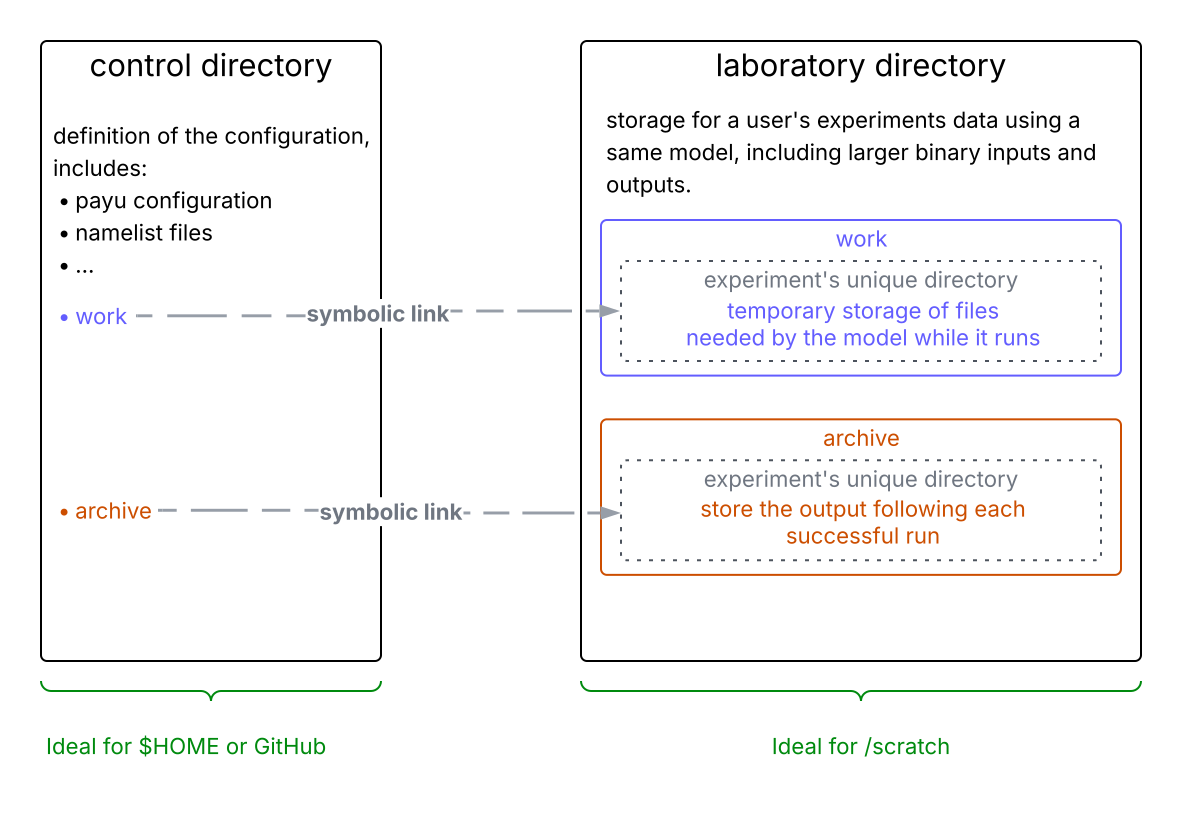
As shown in the diagram, the general layout of a payu-supported model run consists of two main directories:
-
The control directory contains the model configuration and is the directory from which the model run is started. This directory contains information to manage the simulation and the scientific options that define the algorithms used in the model component or the diagnostics saved by the model component. In the control directory, you will find:
config.yamlfile: it is used to orchestrate the simulation.- model components' configuration files:
- if the model has only one component: these files are located directly in the control directory
-
if the model has several components: these files are in subdirectories. The
submodelssection of theconfig.yamlfile specifies the name of the submodels and of the subdirectories containing the pertinent files.To modify the model components' options, please refer to the configurations documentation of the model.
-
The laboratory directory contains all data from payu experiments of the same model. By default, it is
/scratch/$PROJECT/$USER/<model_name>.$PROJECTand$USERare environment variables on Gadi that points to your default project and your username respectively. This location can be changed using options in theconfig.yamlfile. Inside the laboratory directory, there are two subdirectories of particular interest:- work → for temporary storage of files needed by the model while it runs. payu creates this directory at the start of each run and removes it upon their successful completion. It is left untouched in case of error to facilitate the identification of the cause of the model failure
- archive → for storing the output following each successful run. The output, log and restart files are automatically transferred from work to archive upon successful completion of runs.
The archive and work directories for an experiment are most easily accessed through the symbolic links created in the control directory.
Tip
Recommended location of control and laboratory on Gadi.
-
control directories: it is recommended to put them in your
$HOMEdirectory:- this is the only filesystem that is actively backed-up.
- the quota is small (10GB) but sufficient. The control directory only contains text files and symlinks, and so uses relatively little space (<1MB).
If you decide to locate your control directory under
/g/data, be aware of some complications linked to that choice. -
laboratory directories:
/scratchis recommended:- optimised for fast reading and writing of large data
- adequate space available for large model output.
Warning
Files on the /scratch drive, such as the laboratory directory, might be deleted if not accessed for several days. All experiments which are to be kept should be moved to /g/data/ by enabling the sync step in payu.
Output and restart files organisation
Within each of the work and archive directories, payu automatically creates a unique subdirectory for each experiment. Within each experiment subdirectory, the output and restart subfolders are called outputXXX and restartXXX, respectively, where XXX is the run number starting from 000. Model components are further separated into subdirectories within the output and restart directories.
Error and output log files
PBS output files
When the model fails or completes a run, PBS writes the standard output and error streams to two files inside the control directory: <jobname>.o<job-ID> and <jobname>.e<job-ID>, respectively. These files usually contain logs about payu tasks, and give an overview of the resources used by the job.
To move these files to the archive directory, use the following commmand:
payu sweep
Model log files
While the model is running, the standard output and error streams are saved to file in the control directory. You can examine the contents of these log files to check on the status of a run as it progresses (or after a failed run has completed).
Warning
At the end of a successful run, the model log files are archived to the archive directory and will no longer be found in the control directory. If they remain in the control directory after the PBS job for a run has completed, it means the run has failed.
For ACCESS-ESM1.5, the standard output is saved in the file access.out and the standard error in access.err.
Accessing payu
Payu on Gadi is available through a dedicated environment in the vk83 project.
After joining the vk83 project, load the payu module:
module use /g/data/vk83/modules
module load payu
To check that payu is available, run:
payu --version
Get ACCESS-ESM1.5 configuration
Released configurations are tested and supported by ACCESS-NRI, and build upon those originally developed by CSIRO and CLEX CMS.
All released ACCESS-ESM1.5 configurations are available from the ACCESS-ESM1.5 configs GitHub repository: https://github.com/ACCESS-NRI/access-esm1.5-configs.
Supported configurations:
| Configuration | Branch name |
|---|---|
| CMIP6 Concentration-driven pre-industrial | release-preindustrial+concentrations |
| CMIP6 Concentration-driven historical | release-historical+concentrations |
Note
The released configurations for ESM1.5 do not reproduce the published CMIP6 model outputs for various reasons. However, the configurations are properly using the CMIP6 experiment protocol in the setup of each supported configuration.
Before downloading (cloning) a local copy of a configuration, you need to:
- Know the
<repository>and<branch>name the configuration is stored under on GitHub. - Create where on Gadi to store all your payu experiments,
<configurations-directory>, typically a folder under$HOME. This directory must exist before running payu. - Choose a directory name to store the experiment,
<control-directory>(created by payu). Thecontroldirectory is a git repository. Experiments are saved as branches in this repository, making it possible to use the samecontroldirectory for several experiments. For this reason, we recommend to always set the<local-branch>. For more information refer to this payu tutorial. - Choose a name for your experiment,
<local-branch>. It is recommended to choose a descriptive name, specific to your experiment. Note that the experiment name will be formed using the control directory's name and this<local-branch>name.
Then, you can get the chosen configuration using payu clone.
Example: Cloning a configuration
For example, if you want to run an experiment for ACCESS-ESM1.5 using the configuration release-preindustrial+concentrations. You decide the following:
<repository>and<branch>: base your experiment off the branch, release-preindustrial+concentrations, from the repository, https://github.com/ACCESS-NRI/access-esm1.5-configs<configurations-directory>: store all your ACCESS-ESM1.5 configurations under ~/ACCESS-ESM1.5/<local-branch>: name your branch expt1. For a real case, a more explicit name is recommended.<control-directory>: store the configurations for this research project under my-project-expts. For a real case, a more explicit name is recommended.
To get the configuration as chosen, run:
Tip
Anyone using a configuration is advised to clone only a single branch (as shown in the example above) and not the entire repository.
Testing the configuration
Test the configuration
To verify everything is set correctly, it is recommended to first test the configuration as-is.
You can test the setup and paths are correct by running payu setup from the control directory:
payu setup
This command:
- creates the laboratory and work directories based on the experiment configuration
- generates manifests
- reports useful information to the user, such as the location of the laboratory where the work and archive directories are located
This can help to isolate issues such as permission problems accessing files and directories, missing files or malformed/incorrect paths.
To test the configuration, execute the following command from within the control directory:
payu run -f
This will submit a single PBS job to the queue.
Failure
payu run will error out if a non-empty work directory for your experiment already exists (from a failed attempt or from running payu setup).
The -f option to payu run lets the model run in all cases and delete any existing data under work.
Tip
If you want to restart your experiment from a specific restart point, please refer to Start the run from a specific restart file.
Run the experiment
An experiment consists of a series of sequential runs, with each run continuing from where the previous run ended.
payu supports automatically running a fixed number of runs using the -n option:
payu run -n <number-of-runs>
This will run the configuration number-of-runs consecutive times for the configured run length. This way, the total experiment length will be run-length * number-of-runs. The run-length (i.e. the duration of each individual run) is defined in the configuration settings and its specification is model-dependent.
For example, to run an experiment for a total of 50 years using a configuration with a 5-year run length, the number-of-runs should be set to 10:
payu run -n 10
Tip
payu has no concept of model time, it is up to the user to determine the number-of-runs for the required total experiment length.
number-of-runs should be an integer > 0.
Identifying run_length for your experiment
In ACCESS-ESM1.5, run_length is controlled by the runtime setting in the config.yaml file in the configuration. For example, a 1-year run_length is given by:
    runtime:
        years: 1
        months: 0
        days: 0
See the section on changing run_length for more information on customising the simulation time for ACCESS-ESM1.5.
Monitor ACCESS-ESM1.5 runs
payu provides the payu status command for monitoring jobs. This command can return the scheduler job ID and the stage the payu run is currently at. When the job is complete, it displays the exit statuses from the model and overall payu run, and points to the PBS log files.
Note
payu status is available in payu versions 1.2.0 and above. This command does not yet support monitoring post-processing jobs from the configuration (e.g., payu collate and payu sync).
Example outputs from payu status
Example output from payu status for a running simulation:
    ========================================
    Run: 8
      Job ID:            running_example.gadi-pbs
      Run ID:            xxxx
      Stage:             model-run
      Current Expt Time: 1950-10-01T00:00:00
      Exit Status:       0 (Success)
      Model Exit Code:   0 (Success)
      Output Log:        /home/189/USER/expt.o100
      Error Log:         /home/189/USER/expt.3100
      Job File:          /scratch/\$PROJECT/USER/archive/expt-branch—6dhash/payu_jobs/8/run/running_example.gadi-pbs.json
    ========================================
Example output from payu status for an archived simulation:
    ========================================
    Run: 8
      Job ID:            archive_example.gadi-pbs
      Run ID:            xxxx
      Stage:             archive
      Total Queue Time:  0h 1m 7s
      Model Finish Time: 1950-10-01T00:00:00
      Exit Status:       0 (Success)
      Model Exit Code:   0 (Success)
      Output Log:        /home/189/USER/expt.o100
      Error Log:         /home/189/USER/expt.3100
      Job File:          /scratch/\$PROJECT/USER/archive/expt-branch—6dhash/payu_jobs/8/run/archive_example.gadi-pbs.json
    ========================================
To monitor the current queue time of a queued job, use payu status --update.
Stop a run
Stop a run
If you want to manually terminate a run, you can do so by executing:
qdel <job-ID>
Tip
If you ran an experiment using payu run -n ... but want to stop it after the completion of the current run, you can create a file called stop_run in the control directory.
This will prevent payu from submitting another job after the current one completes.
Edit ACCESS-ESM1.5 configuration
Change run length
Change run length
One of the most common changes is to adjust the duration of the model run.
ACCESS-ESM1.5 simulations are split into smaller run lengths, each with the duration specified by the runtime settings in the config.yaml file:
The length of an ACCESS-ESM1.5 run is controlled by the runtime settings in the config.yaml file:
    runtime:
        years: 1
        months: 0
        days: 0
Warning
The run length (controlled by runtime) should be left at 1 year for ACCESS-ESM1.5 experiments in production in order to avoid errors. However, when testing and debugging new experiments, shorter simulations can be useful. It is possible to set run length to less than a year but additional configuration changes are required. See the section Run for less than one year for details.
To run the model for longer than the default run length, conduct multiple runs as explained in Run an experiment. payu has options to manage the length of a simulation for each payu run command: runtime, runspersub and -n. They allow you to have complete control on the length of your experiments.
Understand runtime, runspersub, and -n parameters
The runtime, runspersub, -n and walltime parameters control various aspects of the simulation related to the length of the simulation:
runtimedefines the run length.runspersubdefines the maximum number of runs for every PBS job submission.-nsets the total number of runs to be performed.walltimedefines the maximum time of every PBS job submission.
By using these parameters correctly, you can fully control the length of your simulation.
Now some practical examples:
-
Run 20 years of simulation with resubmission every 5 years
To have a total experiment length of 20 years with a 5-year resubmission cycle, leaveruntimeinconfig.yamlas the default value of1 year, setrunspersubto5andwalltimeto10:00:00. Then, run the configuration with-nset to20:This will submit subsequent jobs for the following years: 1 to 5, 6 to 10, 11 to 15, and 16 to 20, which is a total of 4 PBS jobs.payu run -f -n 20 -
Run 7 years of simulation with resubmission every 3 years
To have a total experiment length of 7 years with a 3-year resubmission cycle, leaveruntimeas the default value of1 year, setrunspersubto3andwalltimeto6:00:00. Then, run the configuration with-nset to7:This will submit subsequent jobs for the following years: 1 to 3, 4 to 6, and 7, which is a total of 3 PBS jobs.payu run -f -n 7
Tip
The walltime must be set to be long enough that the PBS job can complete. The model usually runs a single year in 90 minutes or less, but the walltime for a single model run is set to 2:30:00 out of an abundance of caution to make sure the model has time to run when there are occasional slower runs for unpredictable reasons. When setting runspersub > 1 the walltime doesn't need to be a simple multiple of 2:30:00 because it is highly unlikely that there will be multiple anomalously slow runs per submit.
Run for less than one year
When debugging changes to a model, it is common to reduce the run length to minimise resource consumption and return faster feedback on changes. In order to run the model for a single month, the runtime can be changed to
    runtime:
        years: 0
        months: 1
        days: 0
With the default configuration settings, the sea ice component of ACCESS-ESM1.5 will produce restart files only at the end of each year. If you may want to continue your short simulation over a longer period, you will need valid restart files created at the end of each run. For this, the sea ice model configuration should be modified so that restart files are produced at monthly frequencies, to match runtime. To do this, change the dumpfreq = 'y' setting to dumpfreq = 'm' in the cice_in.nml configuration file located in the ice subdirectory of the control directory.
Specify the restart file
Start the run from a specific restart file
To configure the experiment to start from specific restart files, add a restart: entry to the config.yaml file, specifying the path to a folder containing existing restart files.
Or to do this automatically when setting up an experiment using payu clone interactive, give the restart path when prompted: Do you want to specify a custom restart path?.
Warning
In some cases, if the supplied restart file is not fully compatible with the model configuration, experiments using a custom restart file may require additional manual adjustments to run correctly.
Warning
The restart option used here will only be applied if there is no restart directory in archive, and so does not have to be removed for subsequent submissions. See Payu docs for further details.
Specify the compute project and storage location
Specify the compute project and storage location
If you want to submit an experiment or part of an experiment using a different project for the compute resources or a non-default location for the archive directory, you will need to modify the following entries in config.yaml:
# If submitting to a different project to your default, uncomment line below
# and replace PROJECT_CODE with appropriate code. This may require setting shortpath
# project: PROJECT_CODE

# Force payu to always find, and save, files in this scratch project directory
# shortpath: /scratch/PROJECT_CODE
For example, to run under the lg87 project (ESM Working Group), uncomment the line beginning with # project by deleting the # symbol and replace PROJECT_CODE with lg87:
project: lg87
For model configurations and output to be saved to a /scratch storage location other than project (or your default if project is not set) then also set shortpath to the desired path.
Warning
If changing the project providing the compute resources during an experiment, set the shortpath field so that it's the same for all runs of an experiment.
Doing this will make sure the same /scratch location is used for the laboratory, regardless of which project is used to run the experiment.
Modify PBS resources
Modify PBS resources
If the model has been altered and needs more time or memory to complete, or needs to be submitted under a different NCI project, you will need to modify the following options in the config.yaml:
queue: normal
walltime: 3:00:00
mem: 1000GB
jobname: 1deg_jra55_ryf
These lines can be edited to change the PBS directives for the PBS job.
Syncing output data
Syncing output data to long-term storage
The laboratory directory is typically under the /scratch storage on Gadi, where files are regularly deleted once they have been unaccessed for a period of time. For this reason climate model outputs need to be moved to a location with longer term storage.
On Gadi, this is typically in a folder under a project code on /g/data.
Payu has built-in support to sync outputs, restarts and a copy of the control directory git history to another location.
This feature is controlled by the following section in the config.yaml file:
# Sync options for automatically copying data from ephemeral scratch space to
# longer term storage
sync:
    enable: False # set base_path below and change to true
    restart: True
    base_path: none # Final sync location will be <base_path>/<experiment_name>/
    exclude:
      - '*.nc.*'
      - 'iceh.????-??-??.nc'
enable to True, and set base_path to a location on /g/data. payu will copy output and restart folders to <base_path>/<experiment_name> to avoid overwriting data from other experiments by mistake. A sensible base_path could be: /g/data/$PROJECT/$USER/<model>.
Pruning model restarts
Pruning model restarts
By default, restart files are created at the end of each run, allowing subsequent simulations to resume from a previously saved model state. However, restart files can occupy significant disk space, and keeping all of them throughout an entire experiment is often not necessary.
If disk space is limited, consider using payu's restart files pruning feature, controlled by the restart_freq field of the config.yaml.
By default, every restart_freq, payu removes intermediate restart files, keeping only:
- the two most recent restarts
- restarts corresponding to the
restart_freqinterval
For example, a restart_freq set to 1YS would keep the restart files at the end of each model year, whereas restart_freq set to 5YS would keep those at the end of every fifth model year.
This approach helps reduce disk space while maintaining useful restart points across long experiments, especially useful in case of unexpected crashes.
The restart_freq field in the config.yaml can either be a number (in which case every nth restart file is retained), or one of the following pandas-style datetime frequencies:
YS→ start of the yearMS→ start of the monthD→ dayH→ hourT→ minuteS→ second
For example, to preserve the ability to restart the model every 50 model-years, set:
restart_freq: '50YS'
The most recent sequential restarts are retained, and only deleted after a permanently archived restart file has been produced.
When restart_freq is not a multiplier of the model's restart frequency
If restart_freq is not a multiplier of the model's restart frequency, payu will keep the first restart passed restart_freq. For example, a model is set to write restart files every 3 years and produces restarts on the following dates:
- restart000: 01/01/2000
- restart001: 01/01/2003
- restart002: 01/01/2006
- restart003: 01/01/2009
- restart004: 01/01/2012
- restart005: 01/01/2015
If restart_freq is set to 5YS (5 years), payu will keep:
- restart000: 01/01/2000
- restart002: 01/01/2006 (first restart date on or after 01/01/2005)
- restart004: 01/01/2012 (first restart date on or after 01/01/2011)
- restart005: 01/01/2015 (keeps immediate restarts before 01/01/2017)
For more information, check payu Configuration Settings documentation.
payu advance options
payu advance options
Warning
The following sections in the config.yaml file control configuration options that are rarely modified, and often require a deeper understanding of how the model is structured to be safely changed.
model section
This section tells payu which driver to use for the main model configuration and the location of all input files that are common to all its model components.
The name field, for the model section, is not actually used for the configuration run, so it can be safely ignored. The name field is used for submodels (see below).
submodels section
Coupled models may deploy the model components as multiple submodels.
This section of the payu configuration file specifies the submodels, the configuration options required to execute the model component correctly and the location of all inputs required for this submodel. The configuration files specific to each submodel can be found in a name/ subdirectory of the control directory, where name is the value of this field in the submodel section of config.yaml.
runlog field
runlog: true
When running an experiment, if runlog is set to true, payu saves a history of the experiment. It does this using git, by automatically committing changes to the control directory repository.
Warning
This should not be changed as it is an essential part of the provenance of an experiment.
payu updates the manifest files for every run, and relies on runlog to save this information in the git history, so there is a record of all inputs, restarts, and executables used in an experiment.
userscripts section
They are used to run scripts or subcommands at various stages of a payu submission:
errorfield: script is called if the model does not run correctly and exits with an error.runfield: script is called after each model run successful execution, but prior to archiving the model output. If usingpayu -nfor automatic resubmission, it is run for each submission.syncfield: script is called at the start of the sync PBS job.
For more information about specific userscripts fields, check the relevant section of payu Configuration Settings documentation.
postscript option
Postprocessing scripts that run after payu has completed all steps of each run (for example, with payu run -n 10, the postscript will run 10 times). Scripts that might alter the output directory, for example, can be run as postscripts. These run in PBS jobs separate from the main model simulation.
Miscellaneous
The following configuration settings should never require changing:
stacksize: unlimited
qsub_flags: -W umask=027
Collate of ocean output files
Collate
Rather than outputting a single diagnostic file over the whole model horizontal grid, the ocean component MOM typically generates diagnostic outputs as tiles, each of which spans a portion of model grid.
The collate section in the config.yaml file controls the process that combines these smaller files into a single outputfile.
# Collation
collate:
    exe: mppnccombine.spack
    restart: true
    mem: 4GB
    walltime: 1:00:00
    mpi: false
restart field is set totrue.
Edit a model components' configuration
To modify the physics used by a model component, the input data or the model variables saved in the output, you will need to modify the model component's configuration files. These are located inside a subfolder of the control directory, named according to the submodel's name specified in the config.yaml submodels section.
Create a custom ACCESS-ESM1.5 build
Create a custom ACCESS-ESM1.5 build
All the executables needed to run ACCESS-ESM1.5 are pre-built into independent configurations using Spack.
To customise ACCESS-ESM1.5's build (for example to run ACCESS-ESM1.5 with changes in the source code of one of its component), refer to Modify and build an ACCESS model's source code.
Controlling the diagnostics output by the model
Controlling the diagnostics output by the model
Selecting the variables to save from a simulation can be a balance between enabling future analysis and minimising storage requirements. The choice and frequency of variables saved by each model can be configured from within each submodel's control directory.
Each submodel's control directory contains detailed and standard presets for controlling the output, located in the diagnostic_profiles subdirectories (e.g. ~/access-esm/preindustrial+concentrations/ice/diagnostic_profiles for the sea ice submodel). The detailed profiles request a large number of variables at higher frequencies, while the standard profiles restrict the output to variables more regularly used across the community. Details on the variables saved by each preset are available in this Hive Forum topic.
Selecting a preset output profile to use in a simulation can be done by pointing the following symbolic links to the desired profile:
STASHCin the atmosphere control directory.diag_tablein the ocean control directory.ice_history.nmlin the ice control directory.
For example, to select the detailed output profile for the atmosphere:
Get Help
If you have questions or need help regarding ACCESS-ESM1.5, consider creating a topic in the Earth System Model category of the ACCESS-Hive Forum.
For assistance on how to request help from ACCESS-NRI, follow the guidelines on how to get help.